Guide to Billing at Solesca
In late 2025, Solesca introduced a unified billing model to make managing users and plans simpler across the platform.
How billing works at Solesca
Your Solesca subscription cost is determined by three key factors:
- Your plan type (Starter, Professional, or Enterprise)
- The number and type of seats you have (View, Design, or Engineering)
- Your SOL Credit balance for optional add-ons and services
| Category | Description | Available options |
|---|---|---|
| Plan | Your Solesca plan determines your available product features and support level. | • Starter • Professional • Enterprise (5+ users, talk to concierge) |
| Seats | Seat types determine which features each user can access. You purchase one seat per user, and their seat type defines what they can do in Solesca. | • Design seat: Access to all design and pre-CAD tools • Engineering seat: Access to all design features plus stringing, equipment placement, and plan set generation • View seat (free): Read-only access to view and comment on projects |
| SOL Credits | On-demand credits that unlock advanced operations and exports across Solesca. | • Run bankable SolarFarmer 2D simulations. • Generate capacity test reports. • Generate a stampable interconnection package (SLD & Plan-set) • 50 States IE stamps • Solar Engineering Services and Consulting |
You'll have access to these seats for the duration of your billing term.
You can purchase SOL Credits anytime, and they never expire.
Manage people and their seats
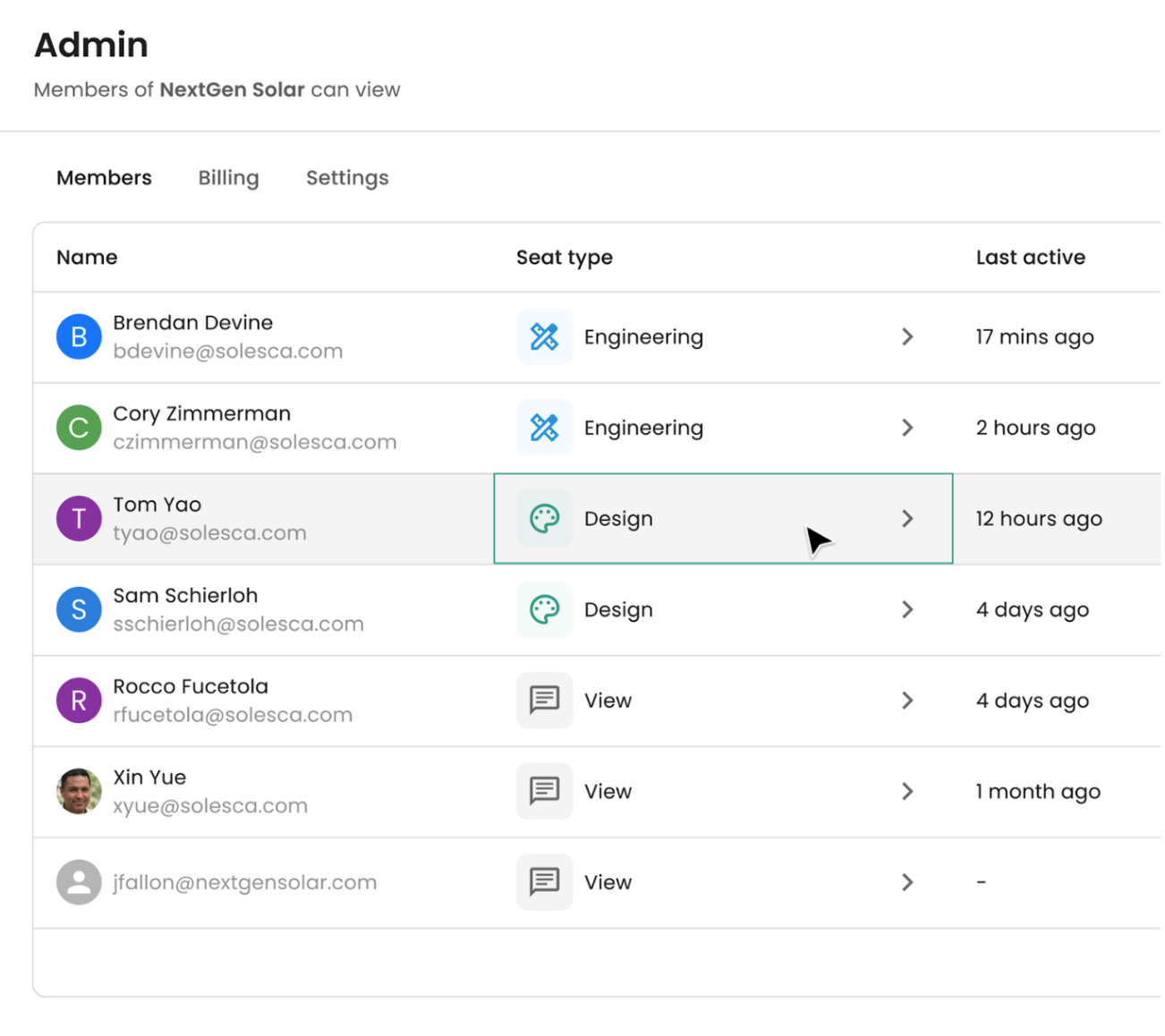
Once you've chosen a plan, you can assign seat types and manage who has access to Solesca Design, Engineering, and View modes.
How Seats Work in Solesca
Solesca has three types of seats that determine what level of access a user has across your workspace.
| Seat Type | What's Included |
|---|---|
| Engineering seat | - Full access to Solesca Design and Engineering Mode - Unlimited DNV's SolarFarmer simulation - AC equipment placement, placing auto stringing, PVC file download - Interconnection package generation discount (-0.5 SOL Credit) |
| Design seat | - Full access to Solesca Design - Unlimited SAM simulation - Export 8760, PDF, DXF file - Does not include access to Engineering Mode - Solar Engineering Services and Consulting (-0.5 SOL Credit) |
| View seat (free) | - View, comment, simulate & export access to Solesca Design - No access to Engineering Mode |
Tip: Seat types can be reassigned anytime. When you upgrade or downgrade a seat, Solesca adjusts access immediately.
Manage user seats
When you purchase a Solesca plan, you buy a set number of seats for the billing period.
Admins can assign or change seats at any time.
Change seat type
- Go to your Admin / Members tab.
- Locate the user and click their current seat type.
- In the popup modal, select and confirm the new seat type.
When you change a user's seat:
- The new access takes effect immediately.
- Their previous seat becomes available for reassignment.
Tip: If you're trying to trade seat types between users, downgrade both to View first. Then reassign the correct seats to avoid unnecessary charges.
Add new seats
New seats can be added at any time as your team grows. When you invite users, you can choose which seat type to give them.
Admin can also purchase additional seats at any time.
Remove seats
Seats are billed for the full duration of your subscription term. Before renewal, you'll be able to remove any unused seats from your Billing page.
If you need to remove a user's access before renewal, you can either:
- Change their seat to the free View seat, which provides only view and comment across Solesca designs.
- Or remove the user entirely from your team.
In both scenarios, their previous paid seat will immediately become available for someone else to use for the remainder of the subscription period.
For monthly plans, unassigned seats are automatically removed from the next invoice.
For annual plans, Solesca sends a renewal reminder 30 days before your renewal date. You can adjust seat counts at that time.
Available seats
A seat is considered available when it has been purchased but is not currently assigned. For example:
- When someone leaves your team, their seat will become available for someone else to use.
- If an admin moves someone to a free View seat, their current seat becomes available.
- You pre-purchased seats at the beginning of a subscription term, but no one is using them yet.
You are billed for all seats on your plan, whether they are available (unassigned) or unavailable (assigned to a user). On the Professional plan, monthly seats that are unassigned are automatically removed at the next monthly invoice.
You can always see how many available seats you have by:
- Going to your Admin / Billing tab.
- You can also view how many seats you have at the top on any Admin page.
How seat changes affect billing
When an admin changes a seat types, Solesca checks if a seat of that type is already available:
- If available: No charge -- the seat is reassigned.
- If not available: A new monthly seat is added to the check-out process.
Example 1: Upgrading from View → Design
When an admin assigns a Design seat, Solesca checks for any unassigned Design seats.
If one exists, it's assigned immediately. If not, a new monthly Design check out process is initiated and you can add a new monthly seat to your plan. (You can also add pro-rated yearly seat manually before assign at Settings / Plan / add additional yearly seats)
Example 2: Downgrading from Engineering → Design
When an admin moves a user to a lower-tier seat, their Engineering seat becomes available.
At the same time, Solesca checks for any unassigned Design seat. If one exists, it's assigned immediately. If not, a new monthly Design check out process is initiated.
That available Engineering seat can then be reassigned to another user -- no extra charge.
Locked Accounts
If payment is overdue, your account may become locked. You will still have access to all your designs in view-only mode, but you will not be able to create any new designs or make modifications. Please reach out to us at mmorris@solesca.com if you would like to restart your subscription.